
Troubleshooting Login Issues
Can't log in? Here are the most common login problems and how to resolve them quickly.
Locked Out Happens to Everyone
Forgotten passwords, changed phone numbers, a browser that suddenly signed everyone out — login trouble is universal and almost always fixable in two minutes without anyone touching a server. This article is the two minutes, plus the reasons behind the system's odd-looking behaviors.
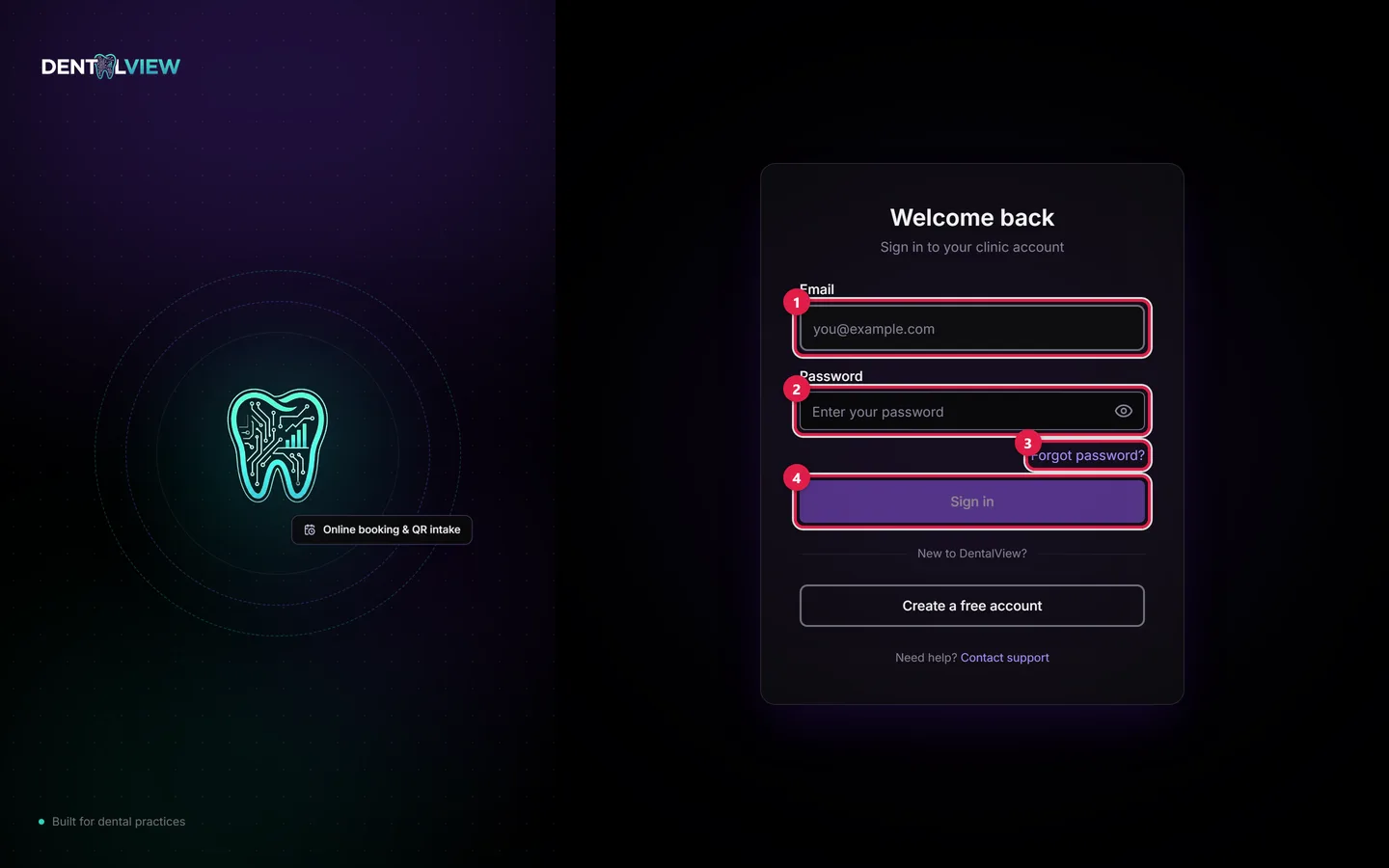
On this screen: ① Email — the address your account or invitation was created with. ② Password — minimum 8 characters; the eye icon shows what you typed. ③ Forgot password? — starts the reset flow: a 6-digit code goes to your phone (or email as fallback), then you set a new password. ④ Sign in — the button enables once both fields are filled.
Resetting a Forgotten Password
- On the login page, click Forgot password? and enter your account email.
- A 6-digit code goes to the phone number on your account — "We sent a 6-digit code to {masked phone}." SMS-first because your inbox is usually the thing you're also locked out of.
- Enter the code, set the new password (minimum 8 characters), and log in.
When the Code Doesn't Arrive
The fallbacks are built in — work them in order:
- SMS failed or no signal — click Send OTP to email instead; the same code goes to your inbox.
- No phone on file — the code routes to email automatically.
- Waited too long — codes expire; Send new code issues a fresh one (60-second cooldown between sends, so the button greys briefly).
- Too many wrong attempts — the reset locks briefly. This is brute-force protection, not a malfunction: wait it out and start over.
- Wrong account entirely — Try a different email steps you back; the classic culprit is a personal email when the invite went to a work one.
"Why Was I Logged Out Everywhere?"
Almost always intentional: changing your password signs out all devices, by design — if a password change was prompted by suspicion, half-measures that leave old sessions alive would defeat the point. Log back in once per device with the new password. To see what's signed in at any time — front-desk PC, your phone, the home laptop — visit Settings > Security > Active Sessions, which lists devices and lets you revoke any one of them individually (the polite version of the password-change hammer).
Invited Staff Who "Can't Log In"
A new hire's login only exists after they accept the invitation email — the account is created by acceptance, not by the invite being sent. Checklist: right email address (compare with Settings > Team's pending list), invitation not expired (re-invite if so), spam folder checked. And if a formerly working login suddenly isn't, ask the owner whether the account was deactivated — deactivated staff can only be restored from Settings > Team, not through password resets.
Still Stuck
Genuinely rare, but: confirm the address bar shows your clinic's actual DentalView URL, try one other browser or private window (extensions occasionally eat login forms), then contact support through the Help page with your account email and what the screen says. "Invalid code" and "attempt locked" are different problems — the exact words shorten the fix.
Was this article helpful?
Need more help? Contact our support team