
Online Booking & Self-Reschedule Links
Let patients book, confirm, or reschedule their own appointments from a secure link — no app needed.
Your Clinic, Open at 11 PM
Patients decide to book at night, on a commute, after a toothache flares — mostly outside your front desk's hours. A public booking page turns that intent into appointments instead of forgotten resolutions: patients pick a dentist, a service, and a slot from the rules you set, and either land directly on your schedule or in a request queue you approve. The link lives anywhere you can paste it — Facebook page, Google Business profile, Instagram bio, the clinic's website.
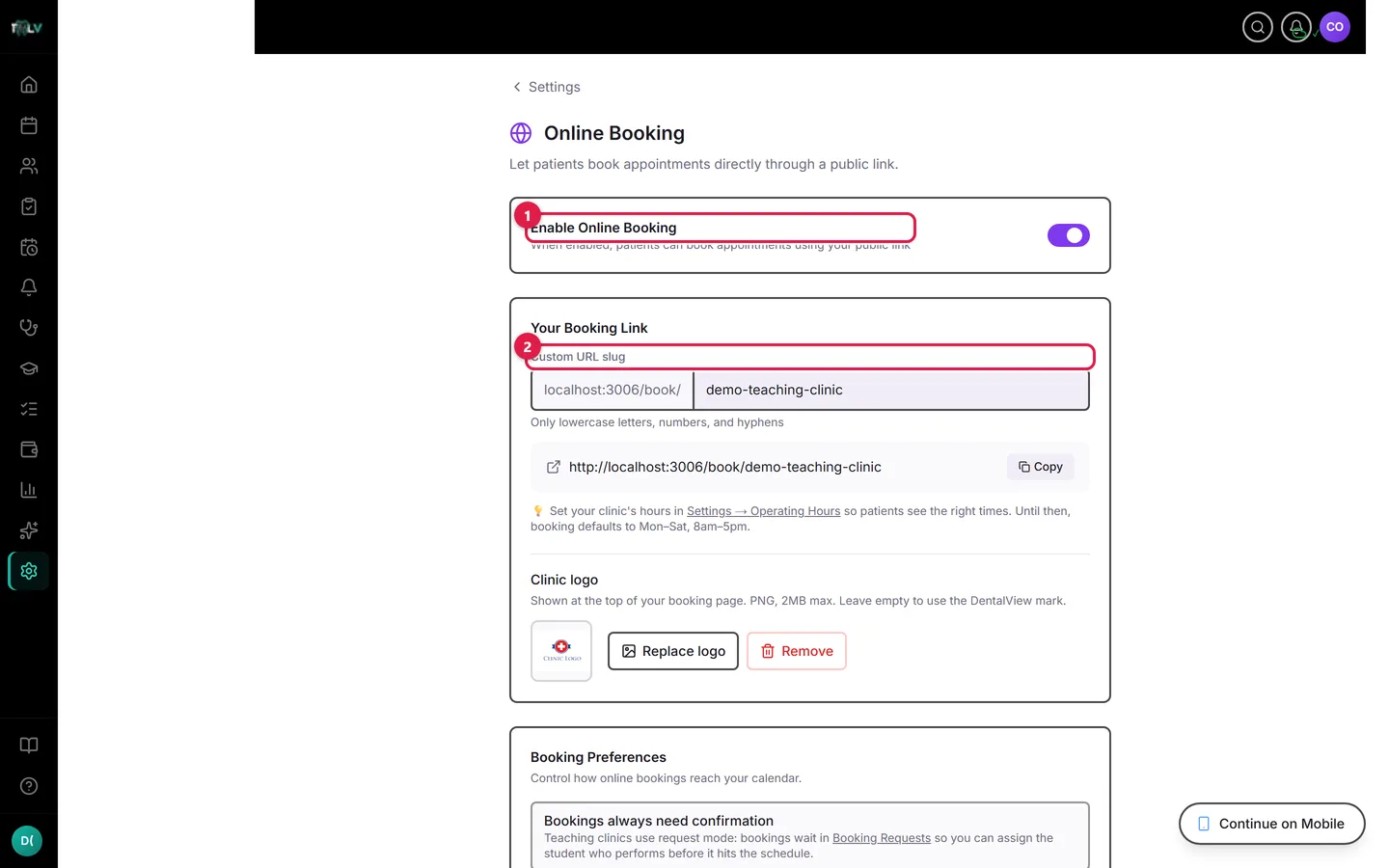
On this screen: ① Enable Online Booking — the master switch; when off, your public page shows as closed. ② Custom URL slug — the tail of your public link ({your-domain}/book/your-slug); keep it short and recognizable, then use Copy to share it. Below these live your logo upload and the Booking Preferences — instant-vs-request mode, notice windows, and which dentists are bookable.
Going Live, Step by Step
- Open Settings > Booking (owner or Full Access) and switch on Enable Online Booking.
- Set your Custom URL slug — the public page lives at {your-domain}/book/{slug}. Short and recognizable wins: your clinic name, not an abbreviation only you understand. Copy puts it on your clipboard for pasting into your socials.
- Upload a Clinic logo (PNG, up to 2 MB) so the page carries your branding rather than a generic mark.
- Under Booking Preferences, tick your Bookable dentists — the public page stays hidden until at least one provider is checked, so this is the real "on" switch.
- Set the three window rules (next section) and click Save Preferences.
- Click Save Changes for the toggle and slug — note the two sections save separately, a classic gotcha.
Set your Operating Hours first (Settings > Hours): the public page offers slots inside them. Until you do, booking defaults to Mon–Sat, 8 AM–5 PM.
The Three Window Rules
- Min. notice (hours) — how close to now a patient may book. Too short and a 7:55 AM booking ambushes your 8 AM; most clinics live comfortably at 12–24 hours.
- Book up to (days) — the horizon. 30–60 days suits most practices; longer mainly collects far-future no-shows.
- Max per day — a ceiling on online bookings per day, so the internet can never fill chairs you need for walk-ins and emergencies.
Instant vs Request Mode
The Confirm bookings instantly toggle decides who has the last word:
- Instant on — bookings drop straight onto the schedule. Choose this when your calendar is the source of truth and every listed slot is genuinely available.
- Instant off — bookings wait in Booking Requests, where you Confirm (adjusting date, time, or dentist if needed) or Decline with an optional reason the patient sees. Choose this while you're building trust in the setup, or when slotting requires judgment.
Teaching clinics always run in request mode — confirming there also assigns the performing student.
What the Patient Experiences
They open your link, see your logo, pick a bookable provider, a service (with your prices), and a slot inside your rules, then submit. They receive an SMS when the booking is confirmed. Reschedule requests arrive in Booking Requests wearing an amber old→new badge, so you always see what's moving before you approve it.
Running It Well
Check Booking Requests at opening and after lunch (the pending badge on the sidebar keeps count); a request answered in hours converts, one answered in days rebooks elsewhere. And treat declines as customer service moments — the optional reason field ("That slot just filled — we've kept Thursday 3 PM for you, please rebook") is the difference between a lost patient and a rescheduled one.
Was this article helpful?
Need more help? Contact our support team