
Creating Prescriptions
Create and print prescriptions from the patient profile, stored alongside the clinical record.
Prescriptions Without the Prescription Pad
The Prescriptions tab writes, stores, and prints ℞ forms that follow Philippine prescribing rules — generic names per the Generics Act (RA 6675), your PRC and PTR numbers in the signature block, and an S2 field for controlled substances. Prescribing is for dentists and the clinic owner; other roles see the history read-only. Every prescription stays attached to the patient, so "what antibiotic did we give her last time?" is one click, not a filing-cabinet hunt.
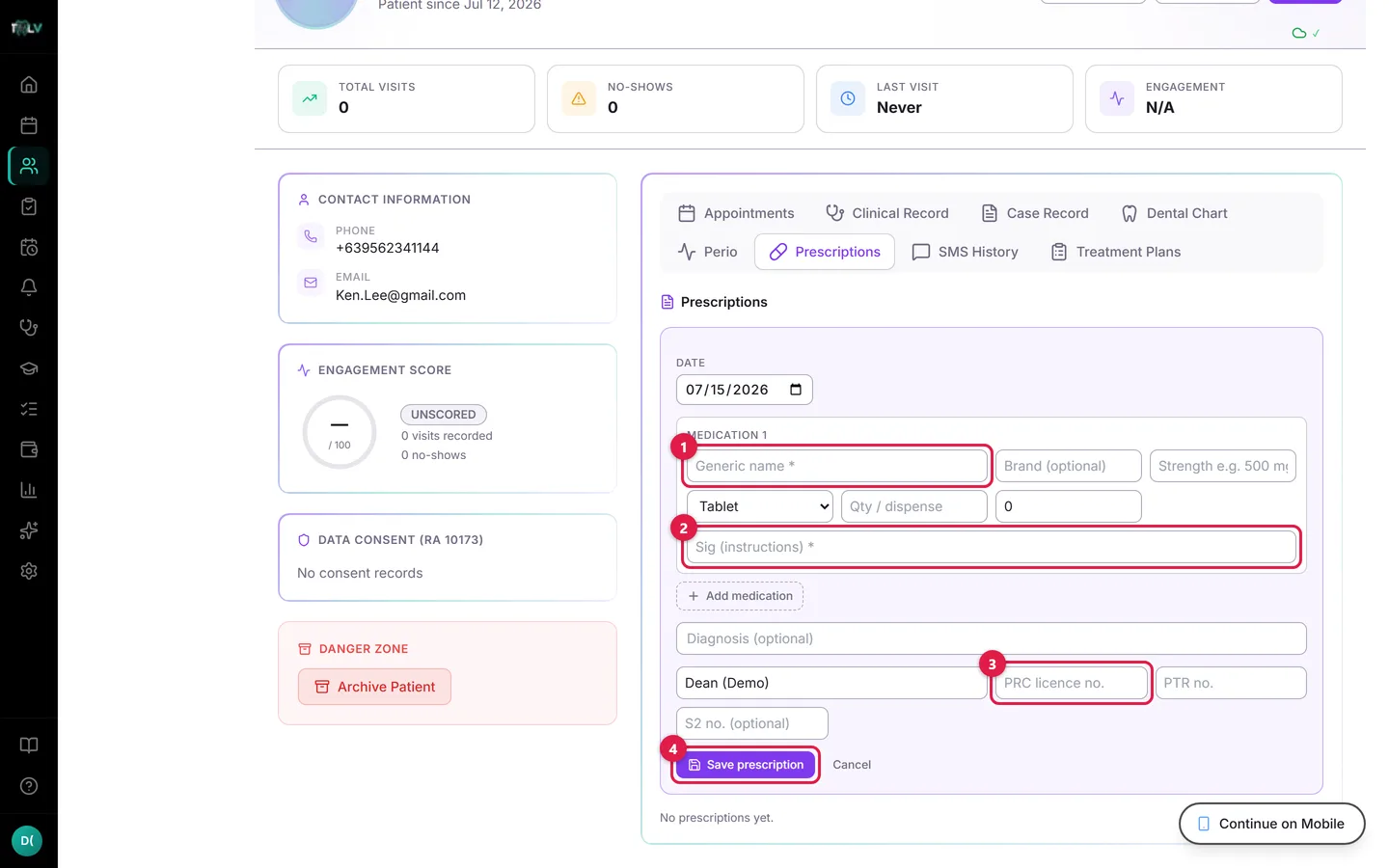
On this form: ① Generic name — required for every medication (RA 6675 — the Generics Act); it autocompletes common dental drugs, and brand name is optional beside it. ② Sig (instructions) — the directions printed for the patient; every medication needs one. ③ PRC licence no. — your prescriber block (PRC, PTR, and S2 for controlled substances) prints in the signature area; it pre-fills from your saved defaults. ④ Save prescription — stores it; Print and Export appear on the saved entry.
Writing One, Step by Step
- Open the patient's Prescriptions tab and click New prescription.
- Confirm the Date (defaults to today, can't be future-dated).
- Fill in the first medication:
- Generic name — required; it autocompletes the common dental drugs (amoxicillin, mefenamic acid, tranexamic acid…). Brand is optional and prints alongside.
- Strength and drug form (tablet, capsule, suspension…).
- Qty / dispense and refills (0–12).
- Sig (instructions) — required for every medication. Write it as the patient should read it: "1 capsule every 8 hours for 7 days, finish the course."
Click Add medication for the next drug — the usual post-extraction pair is an antibiotic plus an analgesic in one ℞. Add an optional Diagnosis, verify the prescriber block (name, PRC licence no., PTR no., S2 no. if applicable — pre-filled from your saved defaults), and Save prescription.
Printing and Handing It Over
Each saved prescription offers Print — a clinic-branded ℞ in a new window with your clinic details, the patient's name, age, and sex, each medication with its Sig and refills, the prescriber signature block, and the Generics Act notice. If nothing opens, your browser blocked the pop-up — allow pop-ups for the site and try again. Export produces a PDF document (for emailing or the patient's phone) or a self-contained HTML file.
Good Prescribing Hygiene in the System
- The Sig is the safety net. The pharmacist and the patient both read it; vague instructions ("as directed") defeat the point of a printed form.
- Set your prescriber defaults once. PRC, PTR, and S2 numbers pre-fill every future prescription — fix them in the prescriber block and they stick.
- Don't edit history — supersede it. A prescription can be deleted (the trash button, with a confirmation naming its date), but the honest pattern for a change is to write a fresh one; the record then shows what the patient actually held in their hands at each date.
- Check the allergies strip first. The profile's red alert strip shows known allergies from intake — the two seconds that prevent the amoxicillin-on-penicillin-allergy mistake.
Was this article helpful?
Need more help? Contact our support team