
Walk-In Queue and Patient Check-In
Manage walk-in patients and streamline the check-in process with DentalView's queue management system.
The Queue Is Your Waiting Room, Live
Philippine clinics run on walk-ins, and the Queue view is built for that reality: a today-only operational board where every patient is either waiting, in treatment, or done. The front desk works this screen all day — it answers "who's next?", "how many are waiting?", and "has Dr. seen the 10 AM yet?" without anyone walking down the hallway to check.
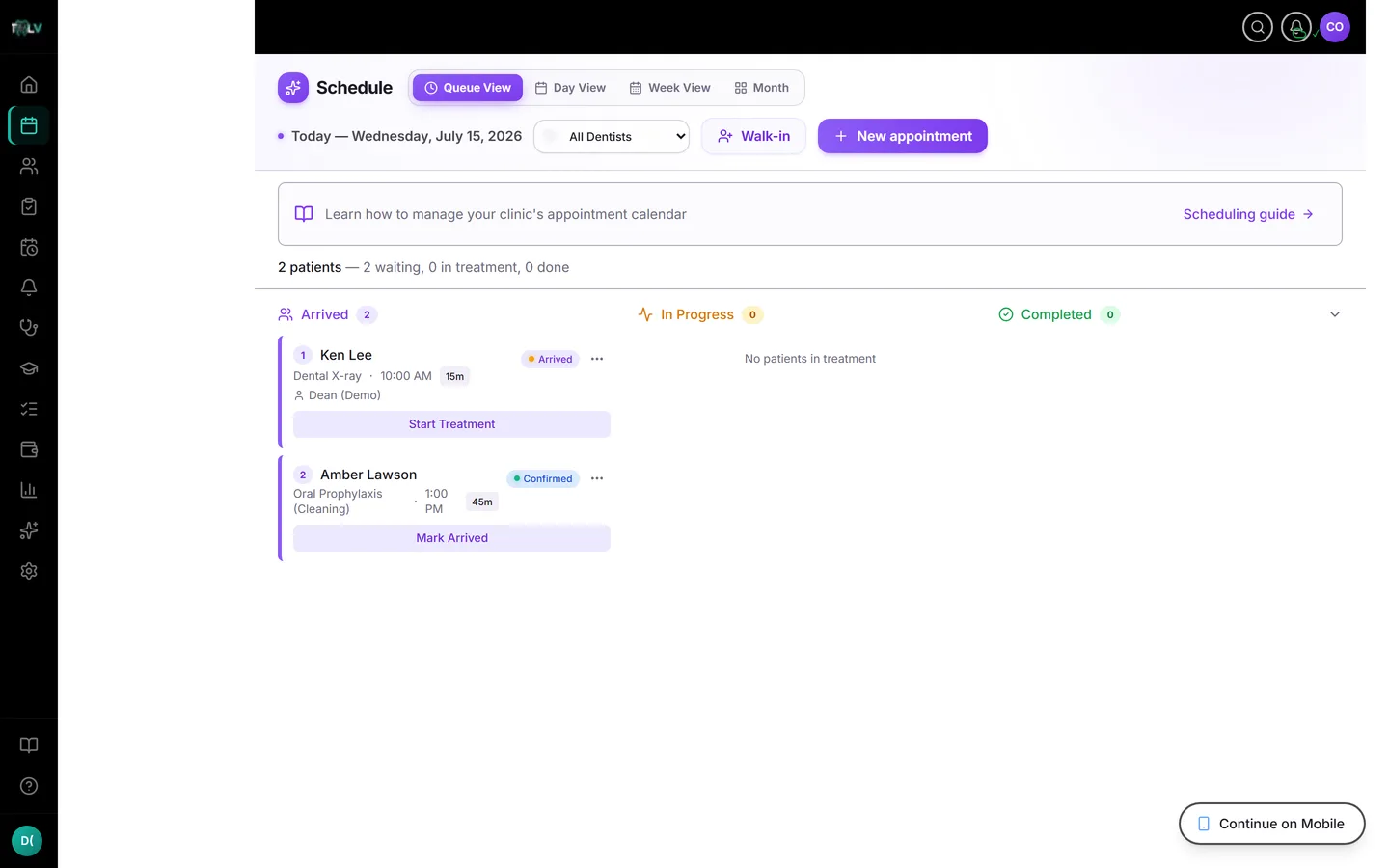
Reading the Board
Open Calendar in the sidebar — Queue is the default view, locked to today. Three lanes: the waiting lane (scheduled, confirmed, and arrived patients, numbered by position), In Progress, and a collapsible Done lane holding completed, no-show, and cancelled visits. The summary line keeps the count honest: "{total} patients — {n} waiting, {n} in treatment, {n} done."
Taking a Walk-In, Step by Step
- Click Walk-in in the schedule header (on mobile, the floating button).
- Search for the patient by name or phone. Walk-ins always attach to a real patient record — this is deliberate, because an anonymous "walk-in #3" produces exactly the orphaned-record mess the system is designed to prevent.
- If they're genuinely new, the dialog opens the full Create New Patient form. A phone match auto-links to the existing record instead of duplicating — trust it.
- Pick the services they're here for (a running ₱ total shows) and add any notes for the dentist.
- Click Add Walk-in — they join today's waiting lane at the end.
Where queue position matters socially — and it always does in a full waiting room — the numbered lane is your referee: first come, first served, visibly.
Moving Patients Through
Each card's status button advances the visit one step: Mark Arrived → Start Treatment → Complete, with Mark No-Show and Cancel available where they make sense (both ask for confirmation — no fat-finger no-shows). On a phone, swipe a card right to mark arrived (with an Undo toast for the inevitable wrong swipe) and left to send a reminder — useful when the 2 PM confirmed patient hasn't shown by 2:15.
Queue Discipline That Pays Off
- Mark Arrived the moment they sign in. Waiting time statistics, the daily digest, and the dentist's sense of the room all come from this timestamp.
- Complete visits as they finish, not in a batch at closing — completed appointments drive revenue reporting and can auto-complete linked treatment-plan phases.
- Use No-Show honestly. No-show counts feed the patient's engagement score and your clinic's ROI report; marking ghosts as cancellations hides your real no-show rate from you.
- For planning beyond today, switch to Day, Week, or Month with the view toggle — the Queue deliberately has no date navigation, because operations live in the present tense.
Was this article helpful?
Need more help? Contact our support team