
Billing Basics: Managing Subscriptions
Everything you need to know about DentalView subscription plans, billing cycles, and payment processing.
How Paying for DentalView Works
The billing model is deliberately simple: a 30-day trial with everything unlocked, then one of two flat plans, paid monthly or annually, by card on auto-pay or by GCash/Maya payment links. No per-patient fees, no surprise meters — the only usage-based element is the SMS allocation, and even that soft-caps rather than cutting you off. This article is the map; the deeper dives (payment methods, plan changes, annual billing) each have their own.
The Free Trial
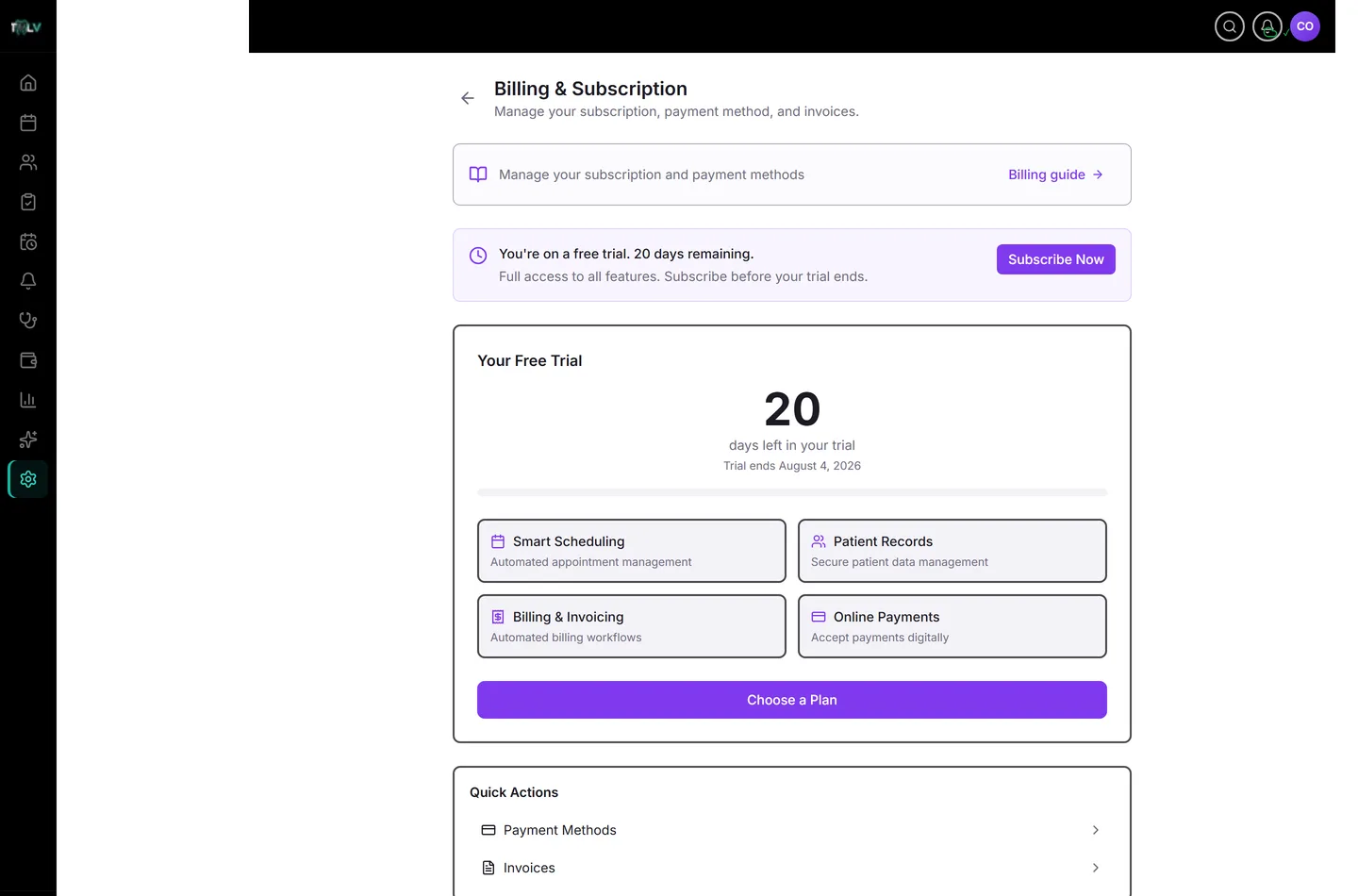
Every new clinic starts with 30 days, all features, no card. The Billing page shows the countdown and a progress bar; a banner offers Subscribe Now whenever you're ready — and subscribing mid-trial doesn't waste the remainder. Treat the trial as a real dry run: load your services, run reminders, take real bookings. The clinic that tests with real workload knows exactly what it's buying.
Subscribing, Step by Step
- Go to Settings > Billing & Subscription (owner or Full Access only).
- Click Choose a Plan (or Subscribe Now in the trial banner).
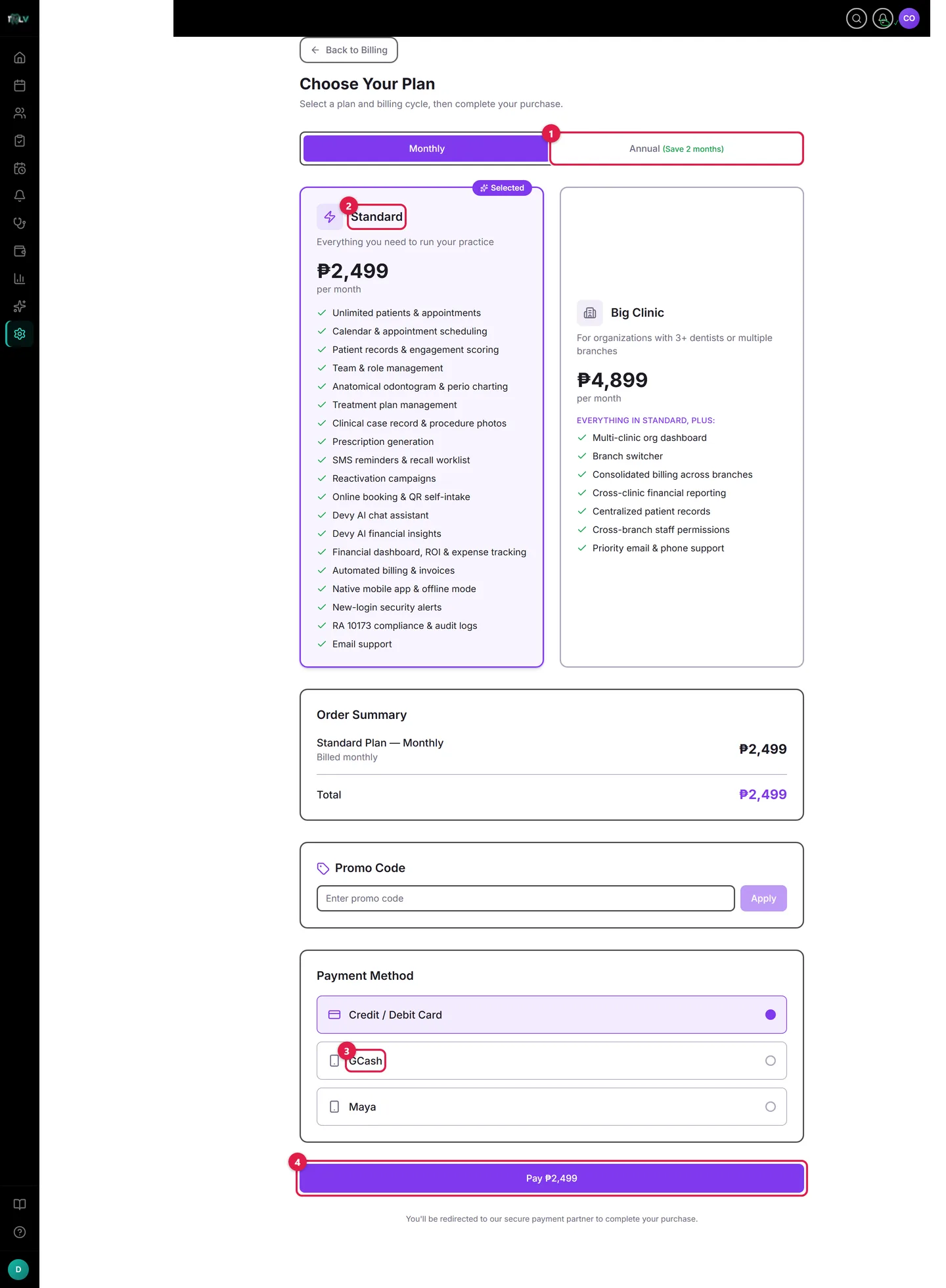
On this screen: ① Billing cycle — Monthly or Annual; Annual is labelled "(Save 2 months)". ② Plan cards — Standard or Big Clinic with each plan's inclusions; the selected card is highlighted. ③ Payment method — Credit/Debit Card, GCash, or Maya; e-wallets pay per cycle and can't be saved for auto-pay. ④ Pay — completes checkout securely through PayMongo and activates your subscription.
The Two Plans
| Plan | Monthly | Annual | Team | Dentists | SMS |
|---|---|---|---|---|---|
| Standard | ₱2,499 | ₱24,990 | up to 5 | up to 3 | 1,000/mo |
| Big Clinic | ₱4,899 | ₱48,990 | up to 15 | unlimited | 3,000/mo |
Standard fits a single-location practice with a small team. Big Clinic exists for scale — more seats, unlimited dentists, triple SMS, plus the organization layer: multi-branch dashboard, branch switcher, consolidated billing, cross-clinic reporting, and priority support. The honest upgrade trigger is hitting a cap (team seats or dentists) or opening a second location.
Auto-Pay vs Manual Billing
Under Billing Preference, choose how each cycle gets paid:
- Auto-pay — your saved card is charged automatically. Requires a card in Payment Methods; zero effort thereafter.
- Manual billing — a payment link arrives by SMS each cycle, payable by card, GCash, or Maya. The right choice for clinics that run on e-wallets, since GCash/Maya can't be saved for auto-charge.
All billing runs at midnight Philippine time, in pesos.
If a Payment Fails
No panic and no immediate cutoff. DentalView retries automatically on days 0, 1, 3, 5, and 7, and the Billing page shows Payment Attempt {n} of 5 with a Retry Payment button for the impatient. Left unresolved, access narrows on a published schedule — read-only around day 10, locked around day 30 — but your data stays safe for months beyond that, and paying at any point restores everything instantly. The usual fix is thirty seconds: an expired card swapped in Payment Methods.
The Rest of the Billing Page
Recent Invoices with a View all invoices link (filter, print, download PDFs, export CSV — your BIR paper trail); Promo Code entry (up to 2 active codes); Account Credit that auto-applies to the next charge; billing Notification Preferences (receipts, upcoming-renewal notice, card-expiry warnings — dunning alerts stay on, deliberately); Pause Subscription for planned closures (up to 2 pauses a year, 30 days each); and Cancel Subscription, which keeps your data recoverable for 90 days — resubscribe within the window and the clinic picks up where it left off.
Was this article helpful?
Need more help? Contact our support team