
SMS Reminders: Reducing No-Shows
Learn how to configure automated SMS appointment reminders, customize message text, and reduce patient no-shows by up to 30%.
The Cheapest Employee You'll Ever Hire
A no-show costs the full slot — the chair, the dentist's time, the revenue — and the most common cause is nothing more sinister than forgetting. Automated SMS handles the remembering: it never gets busy, never skips a patient, and costs a fraction of one filling per month. Clinics typically see no-show rates drop by a quarter to a third once reminders run consistently, and DentalView's ROI report will show you your own number.
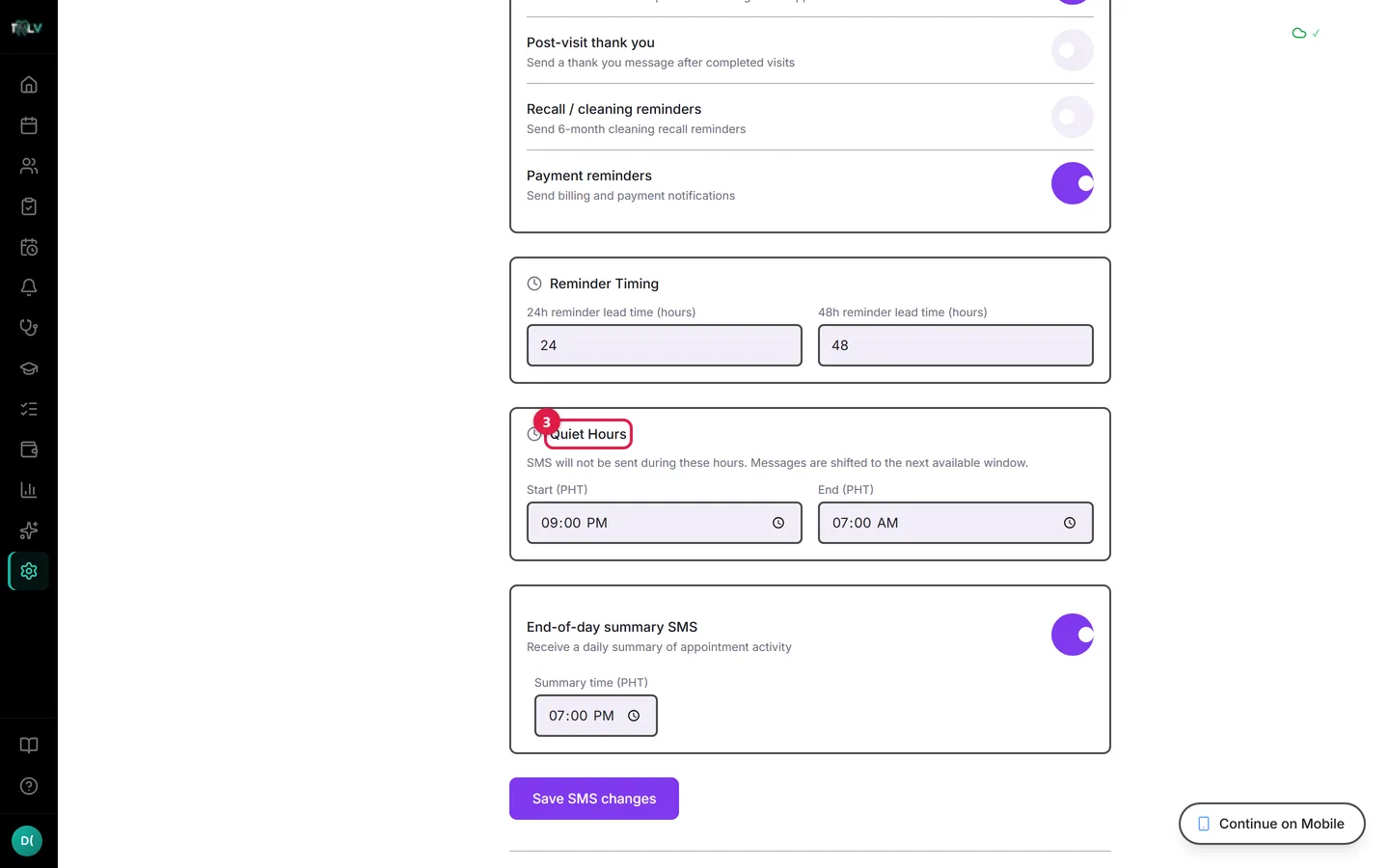
On this screen: ① SMS Usage This Month — how much of your monthly allocation is spent; the bar turns amber at 80%. ② SMS Categories — one switch per automatic message type: 24-hour and 48-hour reminders, morning-of confirmation, post-visit thank you, cleaning recalls, and payment reminders. ③ Quiet Hours — the do-not-disturb window (default 9 PM–7 AM); anything scheduled inside it waits for morning.
Switching It On
- Open Settings > SMS (owners and managers).
- Under SMS Categories, enable what should go out automatically. Each toggle is one message type:
- 48-hour appointment reminders — the planning nudge, far enough out to reschedule.
- 24-hour appointment reminders — the commitment nudge.
- Morning-of confirmation — the day's final touch.
- Post-visit thank you — cheap goodwill that keeps your name in their inbox.
- Recall / cleaning reminders — the 6-month engine that refills your book.
- Payment reminders — the polite collector.
Click Save SMS changes.
That's the whole setup. From here, any patient with a mobile number on file is covered; patients without one, or who opted out, are skipped silently — which is why capturing numbers at registration matters so much.
Tuning the Timing
On the same page, Reminder Timing adjusts the leads: 24h reminders can fire 12–36 hours out, 48h reminders 36–72 hours out. Quiet Hours (default 9 PM–7 AM, Philippine time) guarantees nothing lands at midnight — a message scheduled into the quiet window waits for morning. There's also an End-of-day summary SMS for you, at whatever time you close out.
Speaking the Patient's Language
In Reminders > SMS Template Language, owners set each template to Use clinic default, English, Filipino (Tagalog), or Taglish, with a live sample preview per template. A Taglish reminder reads like a text from a person, not a system — worth the two minutes it takes to set.
Manual Sends for Everything Else
Reminders > Send SMS is your free-form channel: search the patient, pick a Template or write a Custom Message with insert chips ({patient_name}, {clinic_name}, {appointment_date}, {appointment_time}, {dentist_name}), watch the preview and the segment counter (160 characters = 1 SMS, up to 320), and send. The confirmation dialog shows how many messages remain this month. Use it for the human moments automation can't script: "We missed you today," "Your denture arrived," "Doc is running 30 minutes late."
Watching Delivery Like a Front Desk, Not an Engineer
The Dashboard tab tracks sent-today, delivery rate, failures, and your allocation bar; the ROI strip estimates revenue saved from prevented no-shows. The SMS Log lists every message with its status — filter, retry failures, export CSV. The Queue tab shows pending sends (it auto-processes every 2 minutes; Process Now hurries it). One habit covers it all: if a patient claims "I never got a text," the log answers with a timestamp and a carrier status.
Opt-Outs Are Automatic — and Sacred
Patients who reply STOP land on the Patient Opt-Out List (bottom of Settings > SMS) and every future SMS to them is blocked, logged as Blocked. Owners can add a manual opt-out (a patient asked verbally) or remove one — removal requires typing CONFIRM, because overriding a stated preference should never be casual.
Was this article helpful?
Need more help? Contact our support team