
Appointment Scheduling: Calendar Tips
Get the most out of DentalView's appointment calendar with drag-and-drop scheduling, conflict detection, and recurring appointments.
One Calendar, Four Jobs
A clinic's schedule does four different jobs in a day: run the waiting room (now), fill today's gaps (hours), plan the week (days), and balance capacity (weeks). DentalView gives each job its own view instead of forcing one grid to do everything — and remembers which view you used last, because front desk and owner genuinely live in different ones.
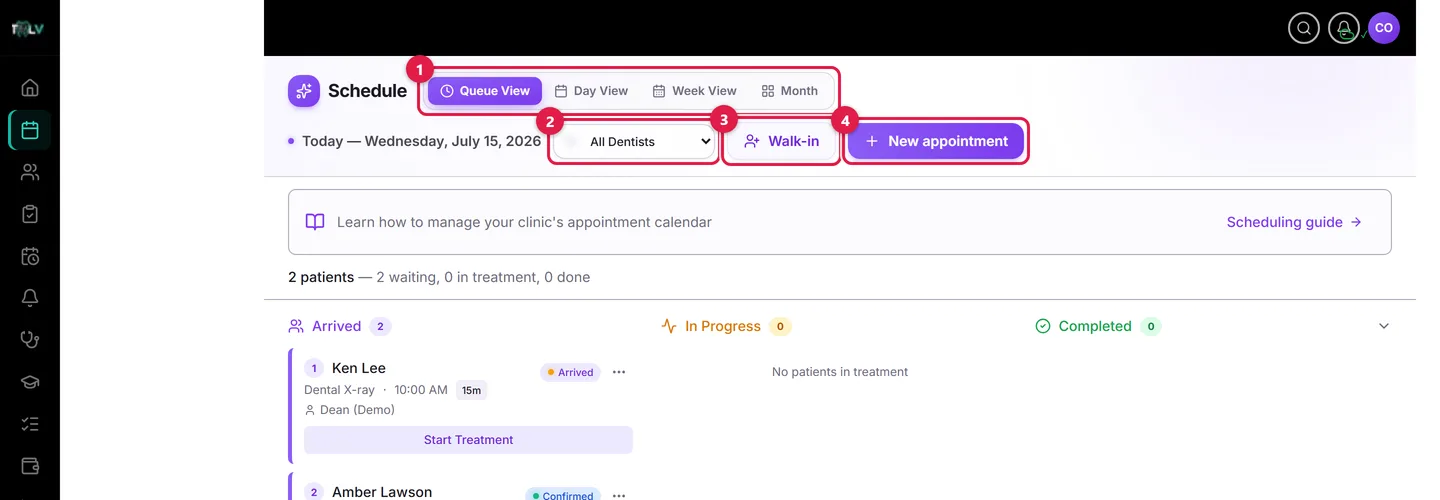
On this screen: ① View toggle — switches between the four calendar views described below. ② Dentist filter — narrows every view to one provider's appointments. ③ Walk-in — registers a patient who just walked through the door and drops them into today's queue. ④ New appointment — opens the booking panel for a scheduled visit.
Choosing Your View
- Queue — the default: today's operational board (waiting / in treatment / done). This is the front desk's home screen; it deliberately has no date navigation because operations happen in the present tense.
- Day — a vertical time grid from 6 AM to 9 PM (it stretches automatically for earlier or later bookings) with a red "now" line on today. Click any empty slot and the booking panel opens with that time pre-filled — the fastest way to book while a patient is on the phone.
- Week — the planning view. Status filter chips appear here, so "show me this week's no-shows" is one click.
- Month — a six-week capacity overview: each day shows its appointment count, colored status dots, and a small capacity meter that reads full at six appointments. Click a day to drop into its Day view.
Booking an Appointment, Step by Step
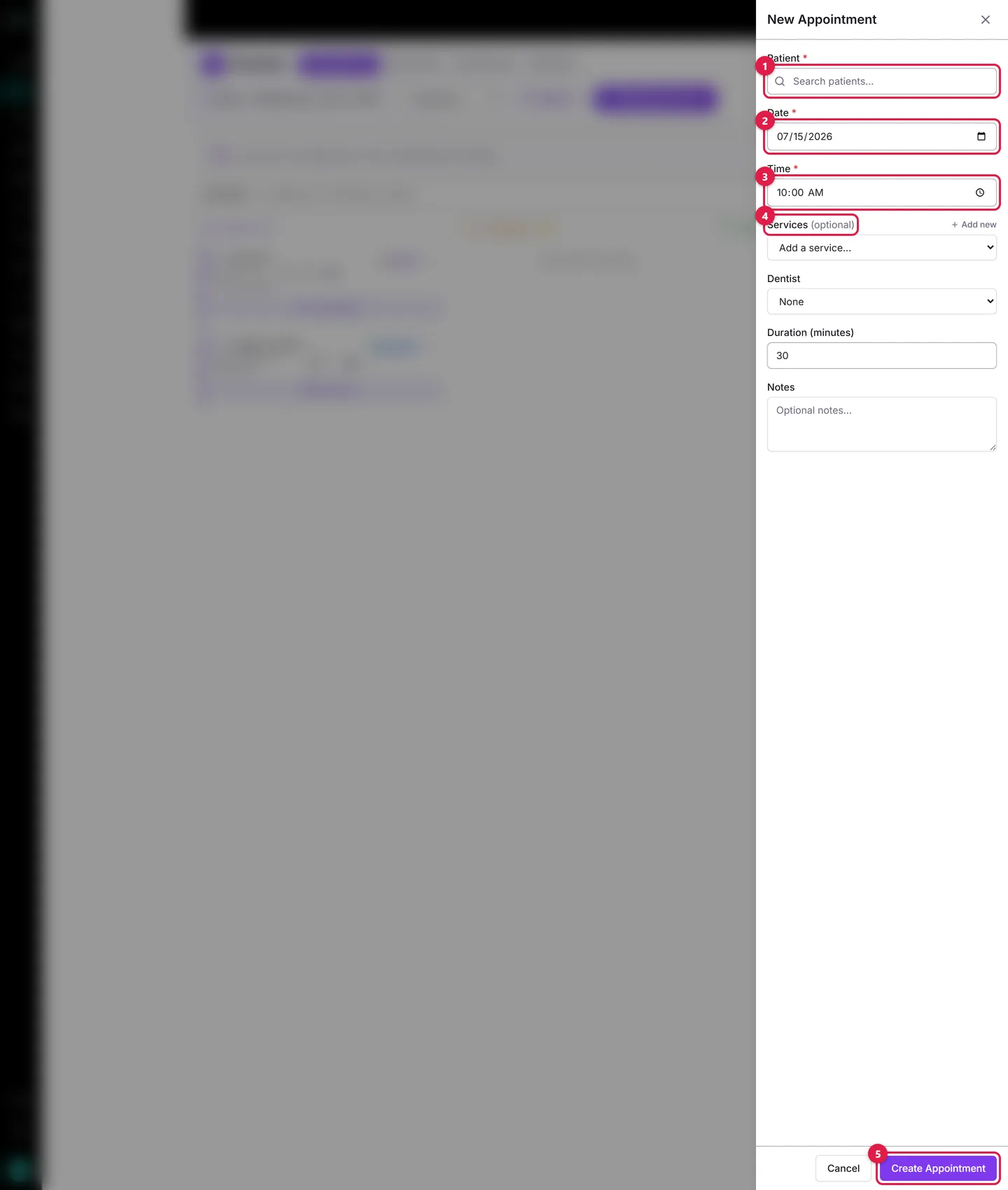
On this form: ① Patient — search by name or phone; the appointment must attach to a patient record. ② Date — defaults to the day you were viewing; past dates are blocked. ③ Time — 30-minute steps. ④ Services — optional but worth adding: each service shows its price, the total adds up automatically, and the appointment duration adjusts to match. ⑤ Create Appointment — saves and places it on the calendar as Scheduled.
- Click New Appointment — or click an empty Day-view slot to pre-fill the time.
- Assign a Dentist if you run multiple providers — the dentist filter and per-provider views depend on it.
- If the patient has a treatment plan, link the visit to a plan phase — completing the appointment can then complete the phase.
- Click Create Appointment.
The Status Lifecycle Is Your Data Quality
Appointments move Scheduled → Confirmed → Arrived → In Progress → Completed, with No-Show and Cancel available where they make sense (both ask for confirmation). The colors are consistent everywhere — violet scheduled, green confirmed, amber arrived, blue in progress, red no-show, grey done — so a glance at any view reads the same.
Treat statuses as bookkeeping, not decoration: Confirmed is what reminder replies and your confirmation rate measure; Arrived timestamps the wait; Completed drives revenue reports and phase completion; No-Show feeds the patient's engagement score and your ROI report. A schedule where everything sits on "Scheduled" all day tells the reports nothing.
Rescheduling Without Losing the Patient
There's no drag-and-drop — rescheduling is a deliberate act. Open the appointment's menu, choose Reschedule, set the new date and time, and leave Send confirmation SMS to patient checked: the patient gets the new time in writing immediately, which is what prevents the "but I thought it was Tuesday" no-show. The toast afterwards reports the SMS outcome — sent, no phone on file, or opted out — so you know whether to call instead.
Habits That Keep the Book Clean
- Use the dentist filter during the day to see one provider's column; Today jumps back from wherever you wandered.
- Insight links land pre-filtered: arriving from a dashboard card like "no-shows this week" switches you to Week view with the right chip already active — the banner's Show all clears it.
- Walk-ins get the Walk-in button, not a fake appointment slot — they join the queue with services attached and keep your time grid honest.
- Fill from the recall list, not from memory: the Follow-ups Due tab in Reminders is a standing supply of patients who already need chairs.
Was this article helpful?
Need more help? Contact our support team