
Upgrading or Downgrading Your Plan
How to switch between Standard and Big Clinic plans, including prorating and what happens to your data.
Plans Should Follow the Practice
Clinics grow, add chairs, open branches, and occasionally downsize — the plan should track reality, not trap it. DentalView makes changes self-serve with honest pro-rata math: upgrades take effect immediately and you pay only the difference for the remainder of the cycle; downgrades wait for the cycle you already paid to finish. Nobody loses prepaid value in either direction.
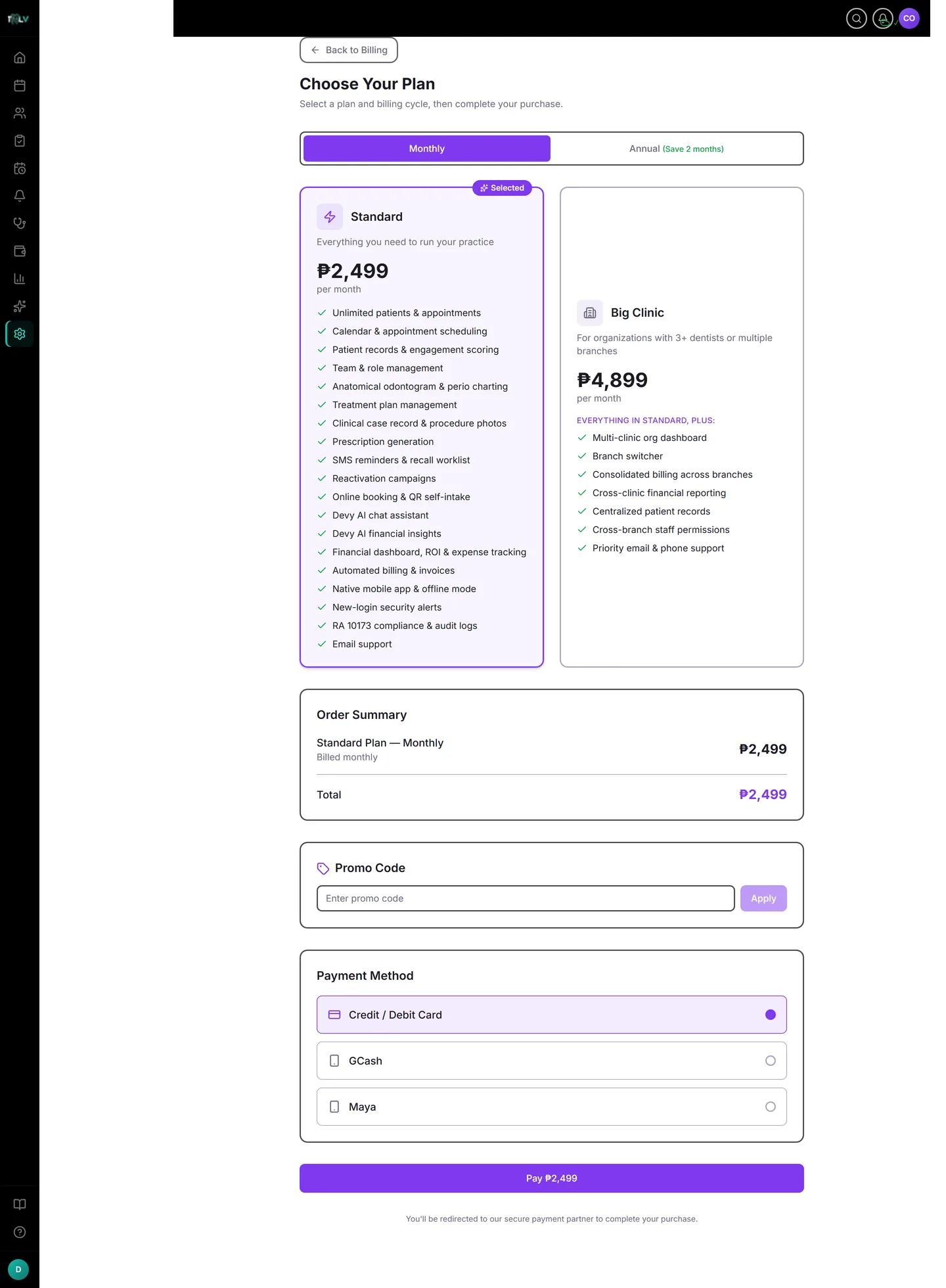
Changing, Step by Step
- Go to Settings > Billing & Subscription and click Change Plan on your subscription card.
- Toggle the billing cycle — Monthly or Annual — then select Standard or Big Clinic (your current plan wears a "Current" badge).
- Click Preview Changes. The Order Summary shows the exact pro-rata arithmetic and the bottom line: "Due today" or "No charge today." Nothing is committed yet — this step exists so you never confirm blind.
- Confirm with Confirm Plan Change (applies now) or Schedule Plan Change (applies at the next billing date).
Afterwards, a "Pending change on {date}" note sits on the subscription card for scheduled changes, and the new price appears on the next invoice. Feature and seat limits switch the moment the new plan starts.
The Three Rules to Know Before You Click
- One change per week. After any change the page shows when the next one unlocks — a cooldown that prevents accidental plan ping-pong, not a punishment. Decide, preview, commit once.
- Annual terms run to completion. The Monthly toggle stays disabled until your annual term's end date (shown on the page). You bought a year at a discount; the year happens — plan the switch for the renewal date.
- Downgrading to Standard needs ≤ 3 active dentists. Standard caps dentists at three, so the page will ask you to remove or deactivate dentists first (Settings > Team). Do the roster housekeeping before the downgrade attempt and it goes through cleanly.
Upgrade Triggers Worth Acting On
The Invite button disabled on a full team, a third dentist waiting to be added, a second location opening, or the SMS bar living at red every month — each is the system telling you the practice outgrew the plan. Upgrades being immediate means the day you hit the ceiling is the day you can remove it; the pro-rata preview tells you exactly what that costs today, which is usually less than one filling.
Downgrades Without Drama
Moving down is the same flow with patience built in: schedule the downgrade, let the paid cycle finish, and trim the roster to fit the smaller caps beforehand. History survives plan changes — deactivated staff, past appointments, and reports all remain — so downsizing the plan never means shrinking the record.
Was this article helpful?
Need more help? Contact our support team