
Accepted Payment Methods
Learn about the payment options available for your DentalView subscription including GCash, Maya, and credit cards.
Cards, Wallets, and Who Does What
DentalView takes payment through PayMongo, the Philippine payments processor — which means the payment methods behave the way local ones actually do: cards can be saved and auto-charged; GCash and Maya work at checkout but cannot be stored for auto-pay (that's how e-wallets work, not a DentalView limitation). Everything on this page flows from that one distinction.
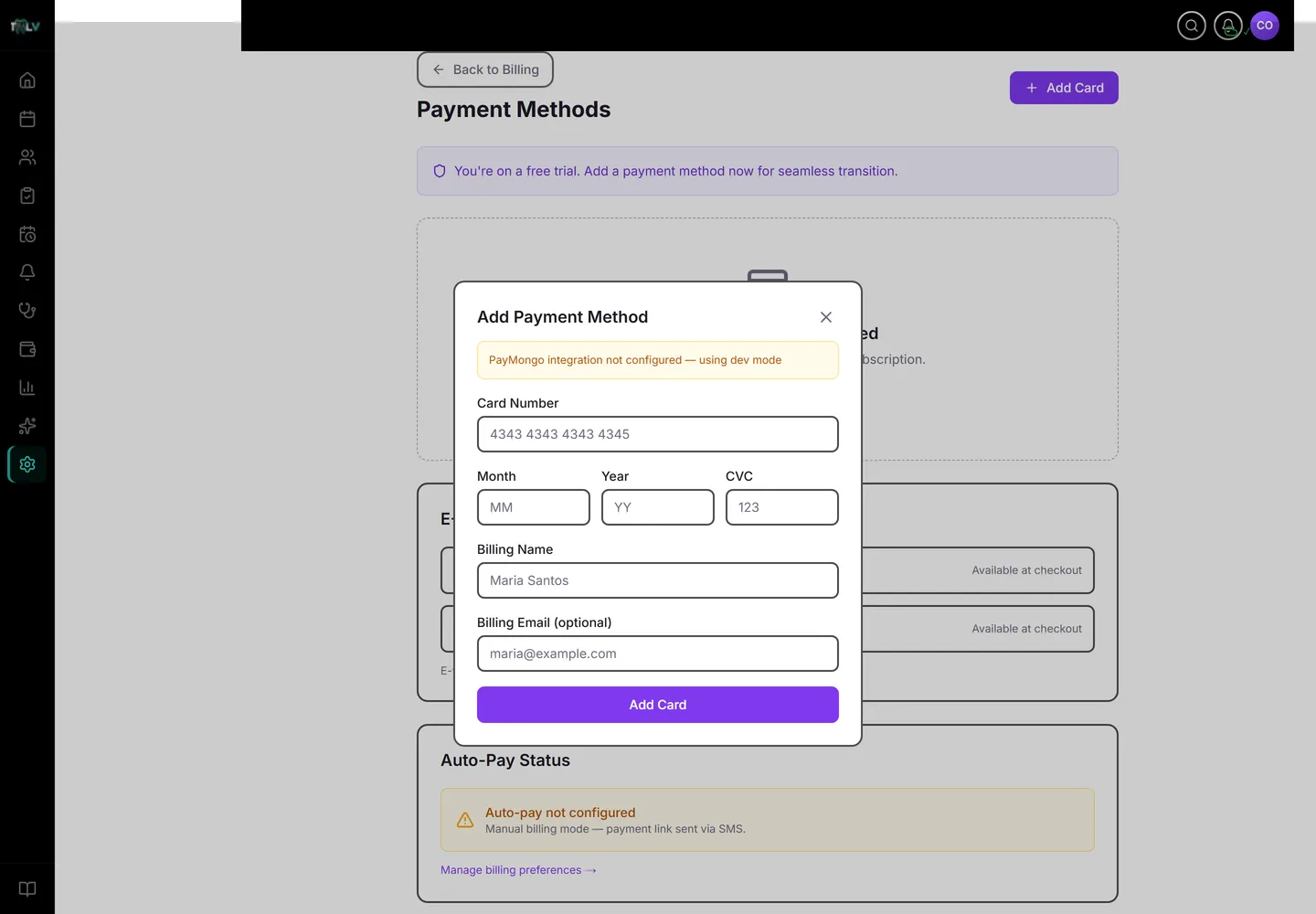
Adding a Card, Step by Step
- Go to Settings > Billing & Subscription and open Payment Methods under Quick Actions.
- Click Add Card.
- Enter the Card Number, Month, Year, CVC, and Billing Name (email optional), then Add Card.
Security worth knowing, because patients-turned-owners ask: card details are tokenized by PayMongo — DentalView never stores raw card numbers, and the processing is PCI DSS compliant. The clinic's software seeing your card number would be the bug, and it doesn't.
Primary, Backup, and the Quiet Failover
Saved cards take roles: Set Primary marks the card auto-pay charges first; Set Backup marks the understudy, tried automatically if the primary fails. A clinic with both a company card and an owner's card as backup essentially never has a failed billing cycle. Badges warn when a card is Expired or Expiring soon — the card-expiry notification (Settings > Billing > Notification Preferences) gives you the same warning without visiting the page.
The E-Wallet Path
GCash and Maya appear under E-Wallets, tagged "Available at checkout." To run the clinic on them month to month, switch Billing Preference to Manual billing: each cycle you receive an SMS payment link and pay from the wallet in a minute. The trade-off is one manual action per cycle versus auto-pay's zero — and the manual-mode banner warns you when a billing date is inside three days, so the link never ambushes you.
Removing a Card
Click the trash icon on the card's row. Removing your only card flips the clinic to manual billing automatically — DentalView tells you so in the confirmation — because a subscription with no card and no manual path would just be a future failed payment. Swap cards in the safe order: add the new one, make it primary, then remove the old.
Auto-Pay Status, at a Glance
The Auto-Pay Status panel answers "is next month handled?" in one look: it names the card auto-pay will charge, or reads "Auto-pay not configured" — which either means you're deliberately on manual billing, or you owe yourself a saved card. Thirty seconds here after any card change prevents the classic surprise: everyone assumed the other card was primary.
Was this article helpful?
Need more help? Contact our support team