
Managing Your Dental Services Catalog
How to add, edit, and organize the dental services your clinic offers, including pricing and categories.
The Price List That Runs the Clinic
Your service catalog is not a menu pinned to the wall — it's operational data. Booking pulls available treatments from it, appointments compute their duration from it, treatment plans price phases with it, and the revenue report groups income by it. Get the catalog right and four other systems start telling the truth simultaneously; leave it half-filled and every quote begins with someone asking "magkano nga ba natin ito?"
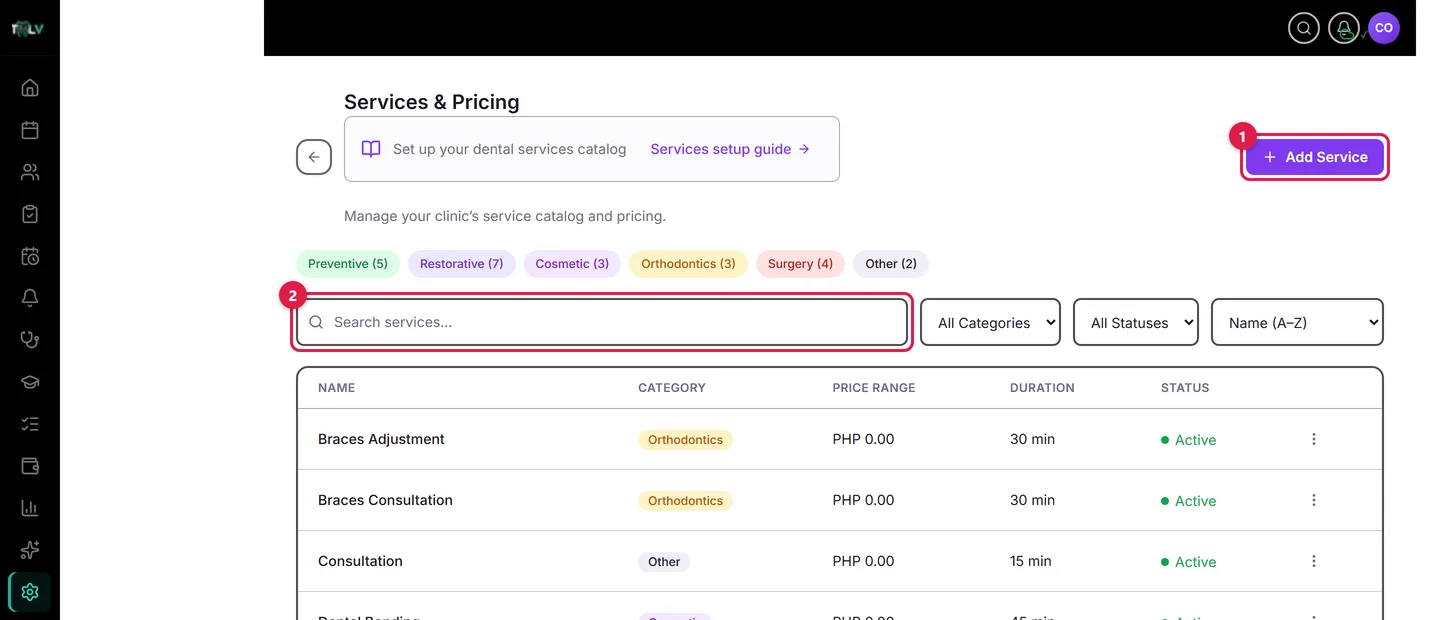
On this screen: ① Add Service — opens the service form; everything you charge for should live here, because services drive booking options, appointment durations, and revenue reporting. ② Search — filters by name; the category pills and dropdowns beside it narrow by category, status, and sort order.
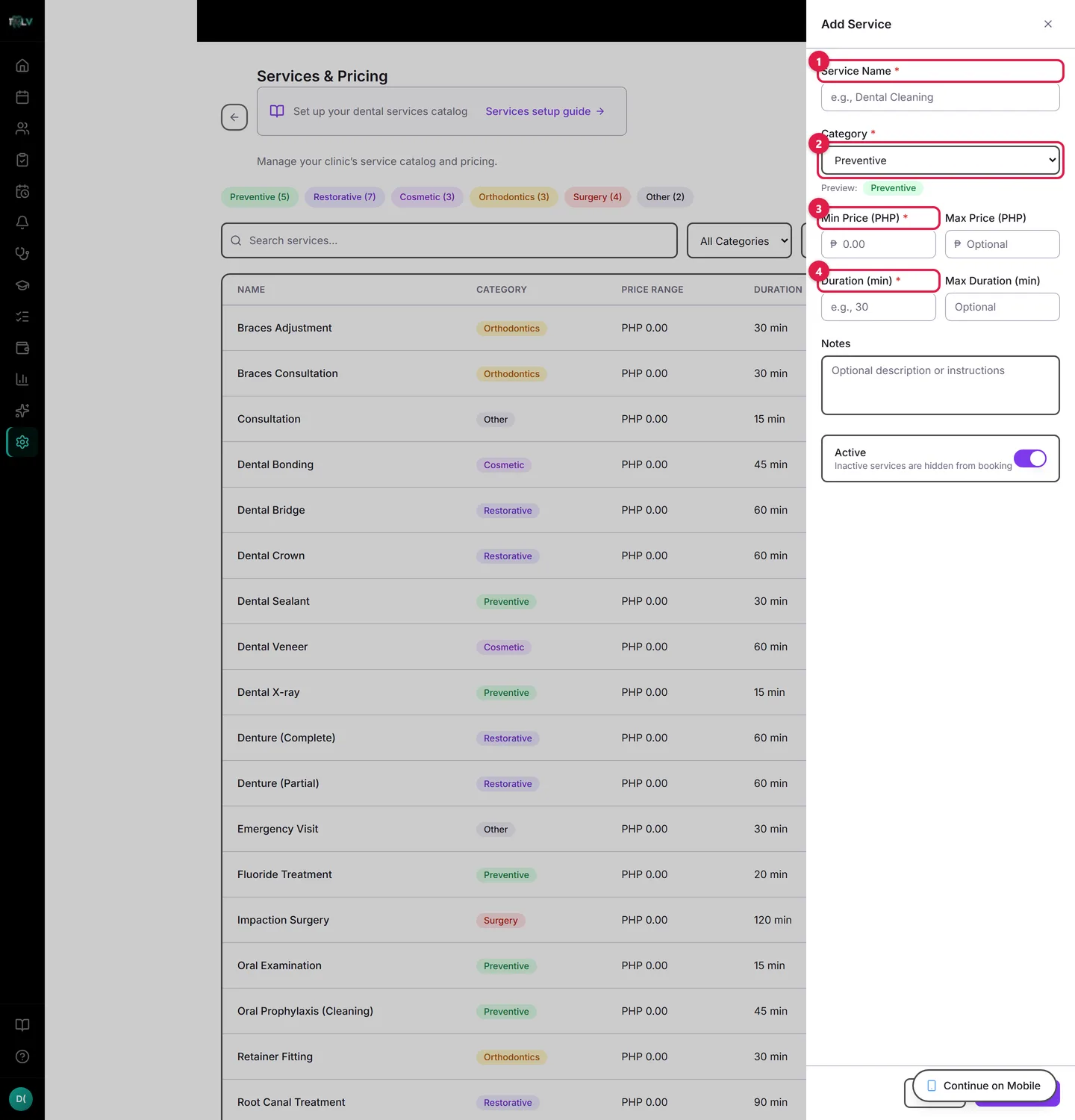
On this form: ① Service Name — what patients and staff will see everywhere. ② Category — Preventive, Restorative, Cosmetic, Orthodontics, Surgery, or Other; used for grouping and reports. ③ Min Price (PHP) — your base price; add a Max Price when the fee depends on the case. ④ Duration (min) — how long to reserve on the calendar when this service is booked.
Adding a Service, Step by Step
- Open Settings > Services and click Add Service.
- Fill in the slide-over — the callouts above explain each field. Two decisions matter more than they look:
- Price as a range. Min price is required; add a Max Price when the fee genuinely depends on the case (extractions, RCT). A range on the public booking page sets expectations honestly without underquoting surgical surprises.
- Duration is calendar time. When this service is booked, the appointment reserves this many minutes — set it to real chair time including anesthesia and cleanup, not the optimistic minimum, or your schedule will overrun by design.
Leave Active on so it's bookable, and Add Service.
The Category (Preventive, Restorative, Cosmetic, Orthodontics, Surgery, Other) is more than filing: revenue reports and the case-mix view group by it, so consistent categorization is what makes "how much of our income is restorative?" answerable later.
Deactivate First, Delete Almost Never
Each row's ⋮ menu offers Edit, Deactivate/Activate, and Delete. The rule of thumb: anything you have ever actually performed should be deactivated, not deleted — deactivation hides it from booking while its history (appointments, revenue, plans that reference it) stays intact. Delete asks for confirmation and cannot be undone; reserve it for typos and test entries. If every service ends up inactive, a warning banner reminds you that patients can't book anything — the catalog equivalent of locking the front door.
Keeping a Big Catalog Navigable
Search by name, click a category summary pill ("Preventive (4)"), or combine the category, status, and sort dropdowns — Price low-to-high is the quick audit for typos (a ₱50 root canal jumps right out), and Recently Added reviews a colleague's changes. Lists paginate at 20.
Price Changes Without Whiplash
Edits apply going forward: existing appointments and treatment-plan phases keep the price they were made with, so raising your prophylaxis fee today doesn't rewrite last month's quotes. For a clean annual adjustment: update the catalog on a quiet day, and note that already-open treatment plans keep their agreed phase costs — patients hold the price they signed.
Teaching Clinics Start Faster
A brand-new teaching clinic's empty state offers Load default services — a one-click standard dental catalog seeded at ₱0, ready for the program to price (or leave at zero, as many university clinics charge only materials). Regular clinics build their own list — it's your fee schedule, after all.
Was this article helpful?
Need more help? Contact our support team