Using the DentalView Mobile App
Access your clinic on the go with the DentalView mobile app, featuring offline support, biometric login, and push notifications.
Built for Philippine Internet
A clinic app that dies when the connection does is a clipboard with extra steps. DentalView's mobile app is offline-first: it quietly keeps a working copy of the day on the device, keeps functioning through brownouts and dead spots, and syncs itself when the signal returns. Same account, same data as the web dashboard — plus the mobile extras that make chairside work faster.
What's Different on Mobile
- Push notifications — appointment updates, queue alerts, the daily digest, and billing alerts, delivered even when the app is closed. Toggled in Settings > SMS (mobile only), with the channel choice — push, SMS, or both — in Settings > Notifications.
- Swipe gestures on the queue — swipe a patient card right to mark arrived (with an Undo toast), left to send a reminder. Front-desk speed without a mouse.
- Floating quick actions — walk-in registration and new appointments live on thumb-reachable buttons.
How Offline Actually Works
While you're online, the app prefetches what a working day needs: today's and tomorrow's appointments, the patients attached to them, and your service catalog. Lose the connection and the app keeps going — you can check in patients, work the queue, and take notes. Everything you do offline is written to a local queue and uploads by itself when the connection returns, in order, with no button to remember.
Two safety details built in: cached patient phone numbers are masked on the device (a stolen phone doesn't leak your contact list), and the patient cache expires after a few hours so stale data doesn't linger.
Your Sync Control Room
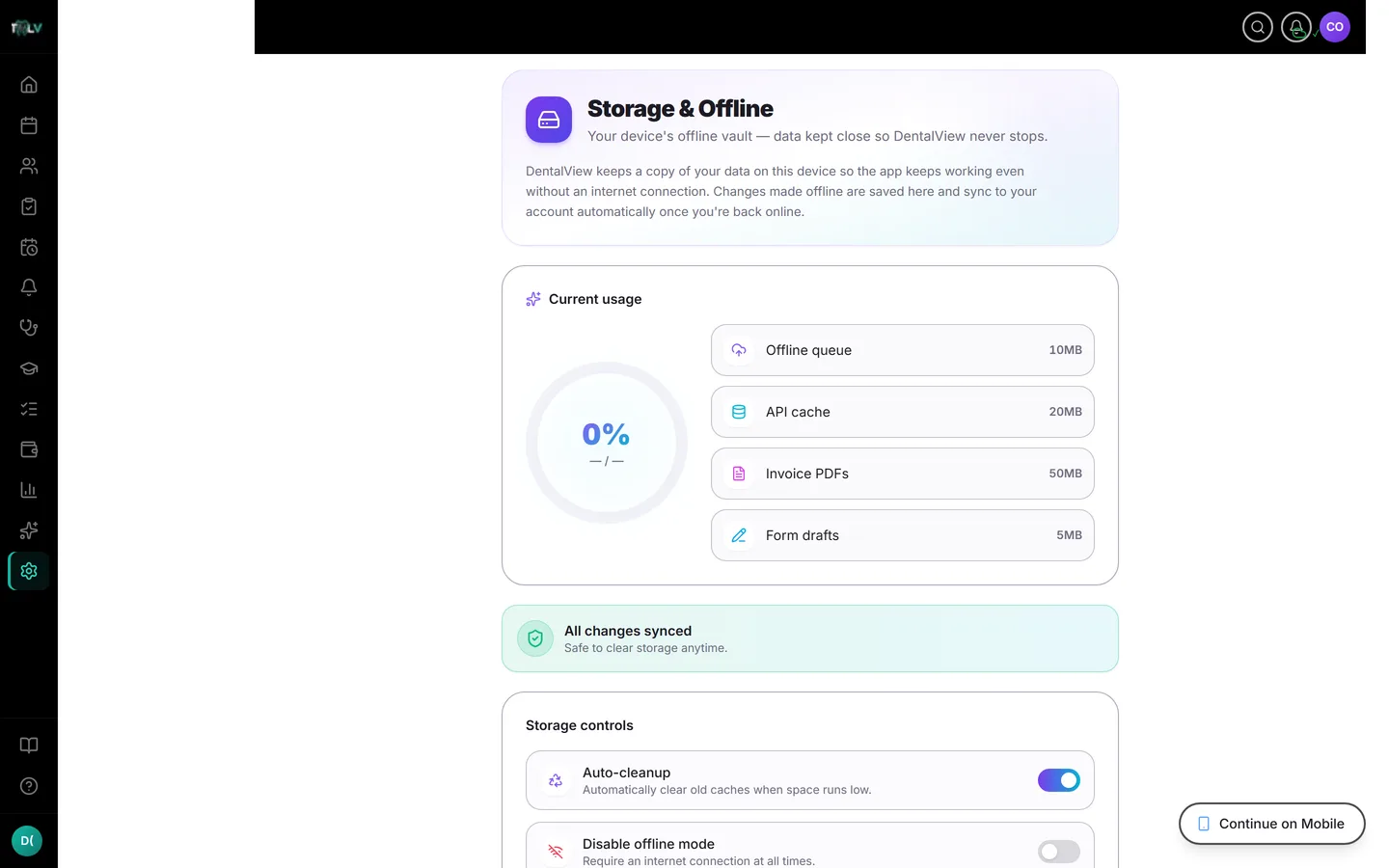
Settings > Storage shows the offline machinery honestly:
- The banner is the headline: green "All changes synced" means everything is safely uploaded; amber "{n} changes waiting to upload" means stay online until it clears.
- The usage ring shows what the offline vault occupies, broken down by queue, cache, invoice PDFs, and drafts.
- Auto-cleanup clears old caches when space runs low — and is explicitly designed to never delete unsynced work. The one thing the machine refuses to lose is the thing you haven't uploaded yet.
- Clear offline data frees space manually while still preserving anything waiting to upload.
The Golden Rule of Offline Work
Offline edits exist only on that device until they sync. So: after a stretch of offline work, glance at Storage and wait for the green banner before switching devices or closing up. If a change made on the tablet isn't showing on the desktop, the tablet's pending-upload counter is almost always the answer — reconnect it and watch the queue drain.
If Something Looks Stale
Pull to refresh first — most "missing" data is one refresh away. Persistent weirdness: check Settings > Storage for pending uploads, then for a conflict status (rare; it means the same record changed in two places and wants a human decision). The nuclear option, Disable offline mode, unregisters the offline machinery entirely and requires a connection at all times — for shared devices where local data is unwelcome, not for daily use.
Was this article helpful?
Need more help? Contact our support team