
Requirements, Sign-Off & Student Progress
Define graduation requirements, approve student procedures, and track per-student progress.
From Tally Sheets to a Live Quota System
Every dental program tracks the same thing: has each student performed enough of each procedure type, verified by faculty, to graduate? On paper this is tally sheets, signature hunts, and end-of-term panic. In DentalView it's a live system: the dean defines categories once, students log procedures as they work, professors sign off, and completion computes itself — trustworthy because only approved work counts.
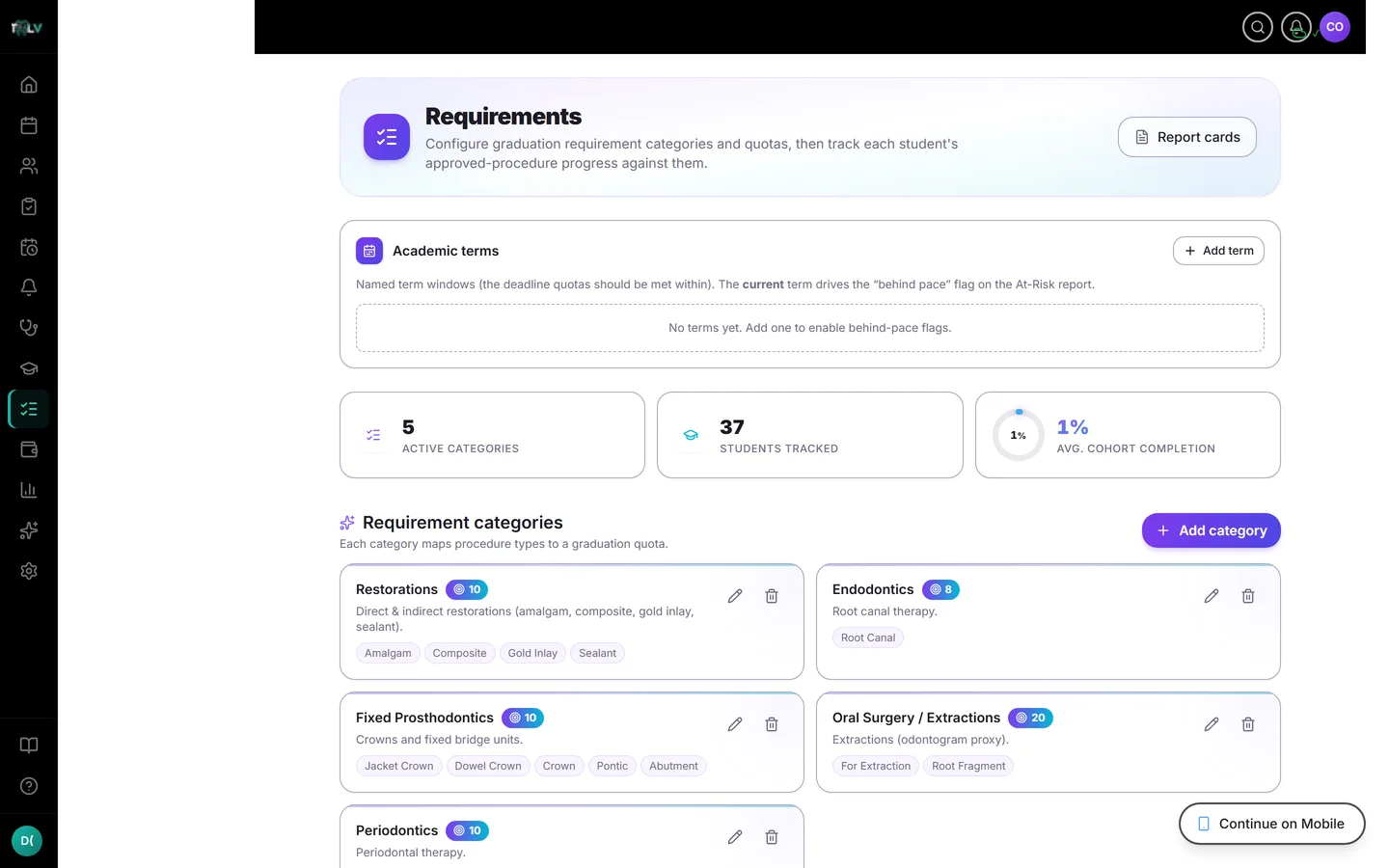
Defining Requirement Categories
On the Requirements page, the dean creates categories — "Restorations," "Oral Surgery / Extractions," "Endodontics" — and maps each to the procedure codes it covers, with a target count per student. Design decisions that matter:
- One procedure type belongs to one category. Selecting a code in a new category moves it out of its old one — nothing double-counts, which is what keeps the totals defensible at accreditation time.
- Targets are per student, so cohort demand scales automatically (30 students × 10 restorations = 300 approved restorations the program must supply).
- Tracked-only categories (target 0) count activity without gating graduation — useful for procedures you want visibility on but don't quota.
- Categories can be edited, reordered, or deactivated (kept but excluded from the matrix); deleting one stops tracking its progress, with a confirm prompt.
Academic Terms Live Here Too
The Requirements page hosts the Academic Terms manager: create named windows ("SY 2026–27, First Semester") and mark one Current. The current term powers the behind-pace flag on At-Risk Students and the term filters across faculty reports — set it up before the term starts and the analytics calibrate themselves (full detail in the Academic Terms article).
The Sign-Off Loop
Every student procedure enters a review queue. In Case Reviews, a professor either approves it — it now counts toward requirements — or returns it for redo, which requires a written remark so the student knows exactly what to fix. This loop is the integrity of the whole system: a number on a report card means a specific professor reviewed specific work, and the trail says who and when. Professors can also open a student's case read-only, comment privately for grading, or share feedback with the student.
The Cohort Matrix
Below the category cards, faculty see the whole program at once: students × categories, each cell showing completed-versus-target, with an Overall pill per student — red below 65%, amber 65–79%, green at 80%+ — and a cohort-average footer. Read it in two directions: a red row is a struggling student (the At-Risk page has the triage tools); a weak column is a case-supply problem — the program isn't generating enough of that procedure type for anyone (Case Mix diagnoses that).
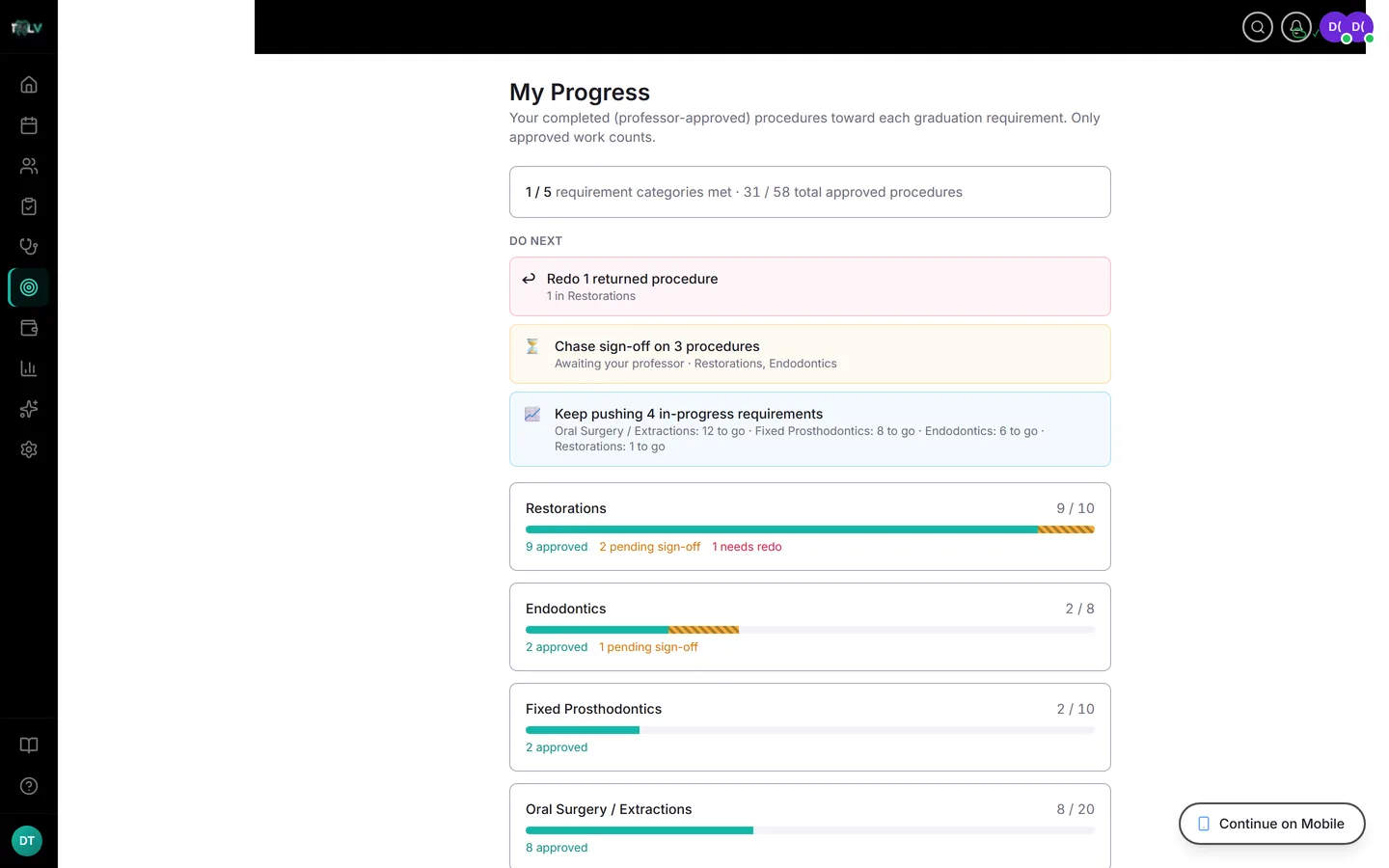
What Students See
Each student's My Progress view shows their own pipeline per category — approved, pending sign-off, needs-redo — against each target, plus a "Do next" strip that prioritizes for them: redo returned work first, chase pending sign-offs, then attack the largest remaining gap. Students see only themselves; the comparison views belong to faculty.
Habits That Keep the Numbers True
Record procedures the day they happen (backdating is possible, batch-entry habits erode trust); professors should work the queue at least weekly — a stale queue quietly distorts every downstream report; and check the matrix monthly rather than at term end, because a supply problem found in October is fixable in a way a February discovery is not.
Was this article helpful?
Need more help? Contact our support team