
Setting Up a Teaching Clinic
Run a dental school clinic with dean, professor, and student roles on a shared patient pool.
A Clinic That Is Also a Classroom
A university dental clinic runs two operations on one patient pool: real care for real patients, and supervised training with graduation requirements attached. Teaching mode makes DentalView hold both at once — academic roles on top of the standard clinic roles, patient isolation for students, professor sign-off on every student procedure, and analytics faculty actually need. This article is the dean's setup tour; the day-to-day academic features each have their own.
The Three Academic Roles
- Dean / Owner — configures the program: requirement categories, academic terms, role permissions, with visibility across every student and every patient.
- Professor — reviews and signs off student work in Case Reviews, with full clinic settings visibility. Faculty analytics (supervision load, cohort standing) read from their sign-off activity.
- Student — treats patients in the shared pool and tracks their own progress in My Progress. Sees only their assigned patients — isolation enforced at the database level, not just hidden in menus.
The cohort structure this creates is the whole point: one patient pool, every case attributed to the student who treated it, every attribution verifiable.
How Access Works
Professors and the dean see the whole cohort's work; students see their own patients and their own numbers. When a patient is assigned to a student, that student gains access to exactly that record — walk-in self-assignment and faculty assignment both flow through the same attribution. If a student reports "missing" patients, the answer is almost always assignment, not a bug: check who the patient is assigned to.
Roles & Permissions, Teaching Edition
In Settings > Roles, teaching clinics get two extra columns — Professor and Student — alongside the standard staff roles. The dean grants or revokes each permission per role: whether professors can open financial reports, whether students get Devy, whether either can handle patient registration. Owner permissions are fixed, ownership transfer stays owner-only, and a Reset restores defaults after experiments. The pattern that works: run the defaults for a term, then adjust from observed friction rather than speculation.
Seats and Money
Students and professors are seat-exempt — a 40-person cohort costs the same as an empty roster, because academic headcount shouldn't be a billing lever. Teaching and University clinics are billed by invoice through a direct arrangement with DentalView rather than the self-serve card plans; issued invoices appear under Settings > Billing. Practical consequence: the self-serve billing pages (plan changes, payment methods) don't apply to you — renewals and changes go through the DentalView team.
Starting the Service Catalog
A fresh teaching clinic's Settings > Services offers Load default services — a standard dental catalog seeded at ₱0 in one click. University clinics often keep zero prices (charging only materials) or set token fees; either way, edit rather than build from nothing.
When a Student Graduates or Leaves
Deactivate them in Settings > Team. Access ends immediately; every procedure they logged stays attributed to them, so historical report cards and accreditation numbers survive the graduation. Their patient assignments release for reassignment to the next cohort. Run this as a batch at term end — it's the academic equivalent of collecting the keys.
The Dean's First-Week Checklist
- Confirm teaching mode with DentalView (it's enabled per clinic, not self-serve).
- Load and adjust the service catalog.
- Define requirement categories on the Requirements page — the graduation quota structure everything else reads.
- Create academic terms and mark the current one.
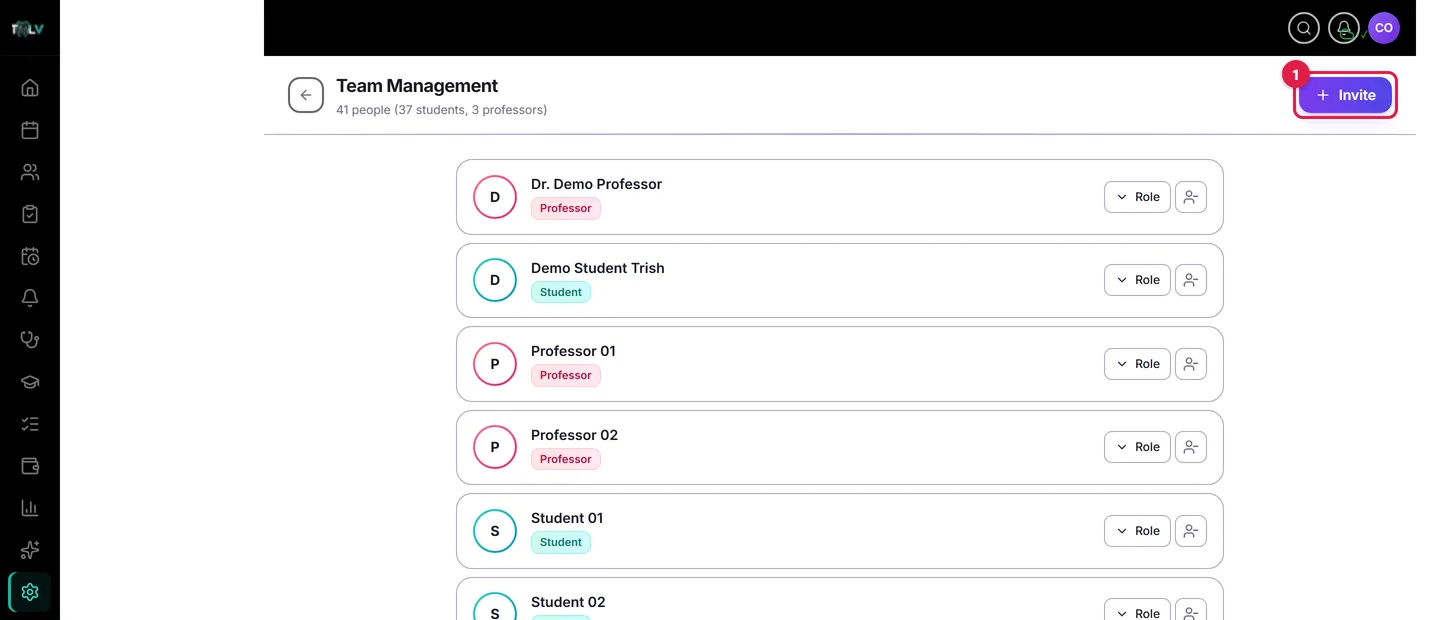
- Invite faculty as Professor, students as Student (bulk-paste the cohort's emails).
- Set role permissions in Settings > Roles.
- Assign initial patients, or let walk-in self-assignment build attribution naturally.
Was this article helpful?
Need more help? Contact our support team